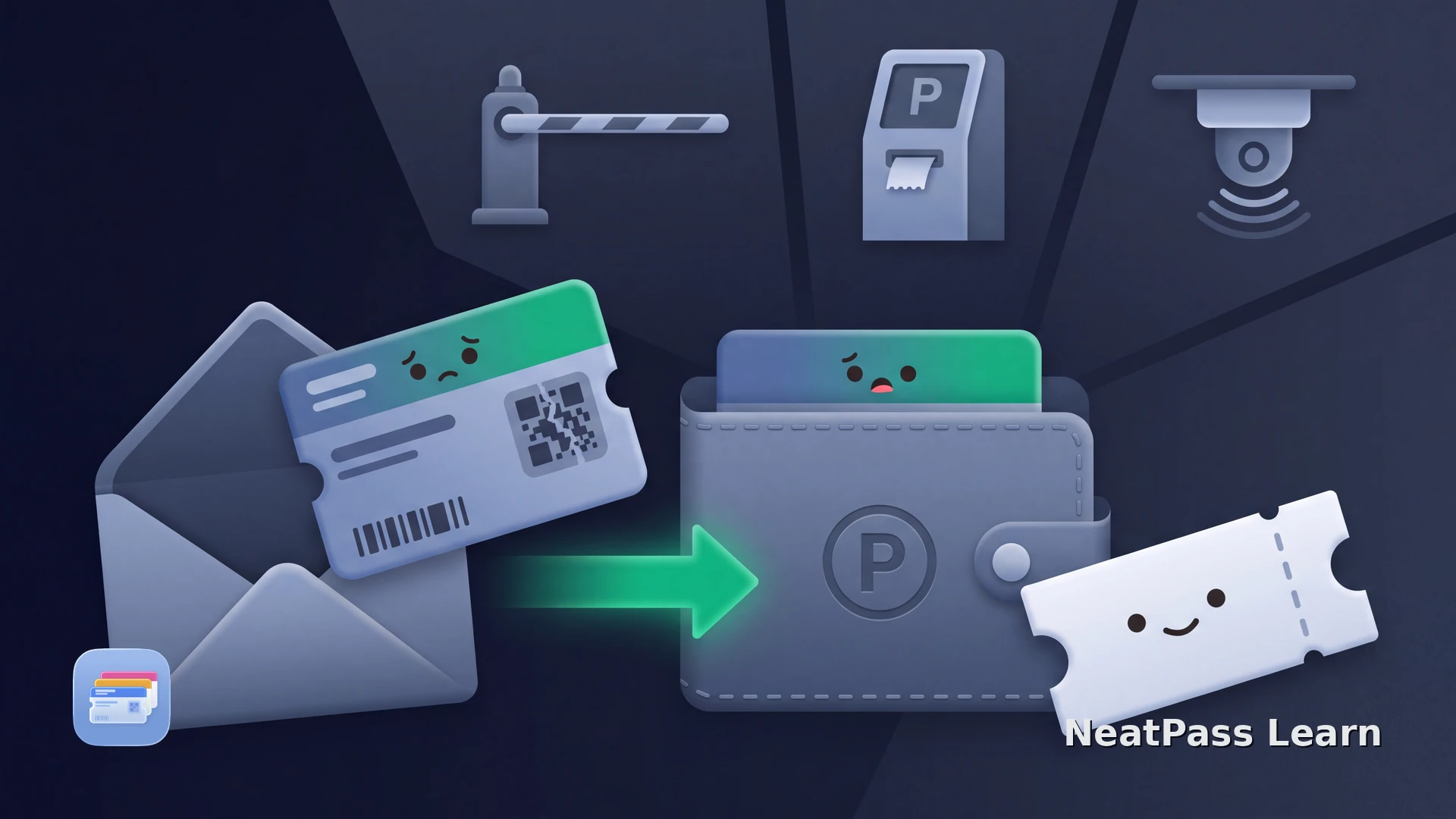
The QR code for your airport parking reservation often arrives in an email or PDF. Keeping it in Apple Wallet saves searching for the confirmation when you reach the barrier or return from your trip.
If your parking provider includes Add to Apple Wallet, use that option. Otherwise, NeatPass can turn the booking’s QR code into a Wallet pass you can find quickly on your iPhone.
Keep the parking pass with your travel documents
NeatPass turns the QR code in your parking confirmation into a Wallet pass. It reads the document and lets you review the booking details before adding it. You can give the pass a clear title, keep useful reference information with it and adjust the design so it is easy to distinguish from your boarding pass.
A name such as “Airport long-stay parking, September trip” can be more useful than the booking email’s subject line. Include the car park name and check the entry and exit dates against your confirmation. If you have reservations for several trips, these details help you choose the right code when you return.
Use the QR code from your current booking
Open the latest confirmation and find the code the provider asks you to present. You can import a PDF, screenshot, or photo into NeatPass. Keep the whole barcode visible; the supported barcode guide covers the available formats.
Follow your booking’s entry and exit instructions
Add the parking code to Wallet
Import the confirmation
Review the booking code
Give the pass a clear name
Add and open the pass
See import methods for PDFs and images, adding to Wallet for the confirmation step, and customizing the pass for a recognizable design.
Find the code when you need it
NeatPass preserves the booking barcode’s data in the Wallet pass. Open it when the barrier asks for the QR code. If your booking uses number plate recognition, follow the normal entry process and keep the code handy if the provider lists it as a fallback.
Keep the confirmation and booking reference available for any questions at the car park. NeatPass stores the original with the pass through View Original. Read about offline access and the app’s privacy policy for more detail.
Prepare for the return journey too
Before leaving the car park, check what you will need when you return. The same reservation code may be used at the exit, or your booking may tell you to retain the ticket issued on arrival. Keep that instruction and your booking reference with the travel documents you can reach easily.
At the barrier, stop the vehicle before opening your pass and hold the code where the scanner indicates. If the barrier stays closed, use the intercom and quote your booking reference. Having the original confirmation available in NeatPass helps you check the car park, dates and booking information while speaking to staff.
Add your parking QR code to Wallet
Import your parking confirmation and keep the booking QR code ready at the barrier.
Frequently asked questions
Your parking code, ready for the trip
Add your current parking confirmation to NeatPass while preparing the rest of your travel documents. Review the dates, use a recognizable pass name and open the saved code once before departure. It will then be easy to find in Wallet for the parts of entry or exit that use your booking QR code.