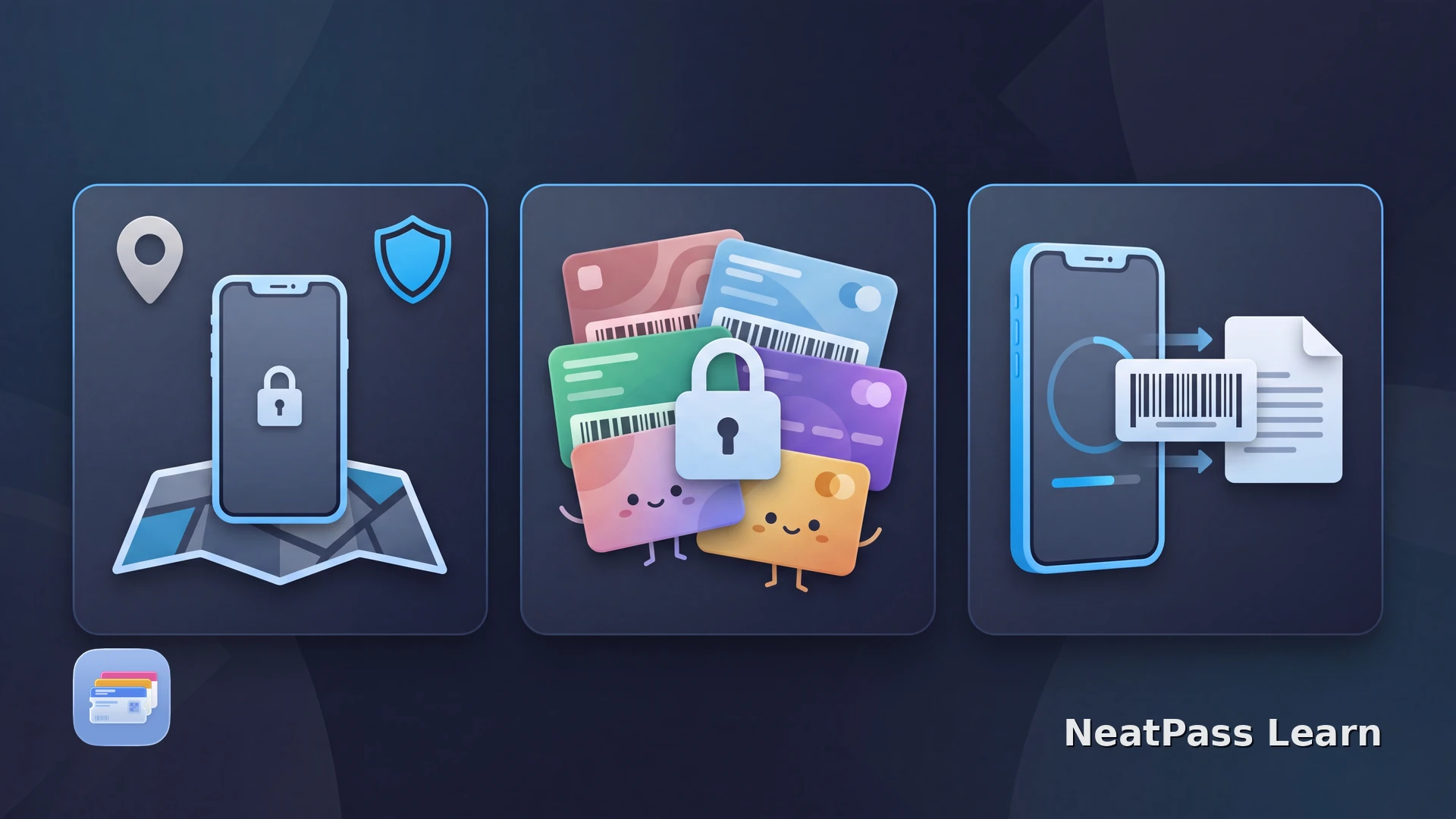
Losing an iPhone can make every pass in Apple Wallet feel urgent, but the right first move is account protection, not deleting passes one by one. Use Find My and Lost Mode to lock the device, protect Apple Pay, and keep Activation Lock in place. Then decide which credentials need to be recreated and which must be reissued by their provider.
Apple Wallet keeps passes on the device, and Apple can keep eligible passes up to date across devices when Wallet is enabled in iCloud. Payment cards have Apple's suspension controls, while ordinary loyalty and membership passes need provider-specific recovery. NeatPass keeps a local copy; if optional iCloud Sync is enabled, its library may sync to iCloud, so keep the original card or document.
Start With Find My and Lost Mode
Open Find My on another Apple device or use Find Devices on iCloud.com. Mark the iPhone as lost as soon as possible and keep it listed in Find My. Do not remove it from Find My. For a phone that is simply lost, a safe return message may help. If someone claims to have found it, do not share the device passcode, Apple Account password, or a verification code.
Lock the device
Lost Mode locks the iPhone with its existing passcode. Keep the device listed in Find My while you decide whether to erase it.
Protect payment cards
Marking a device as lost suspends Apple Pay cards on that device. Check your bank or card issuer separately if you see an unfamiliar transaction.
Keep Activation Lock
Keep the iPhone listed in Find My and do not remove it from Find My, even after a remote erase. This keeps Activation Lock in place and helps prevent someone else from activating the device.
Do not remove the lost iPhone from Find My
The difference between payment credentials and ordinary passes is covered in the Apple Wallet Express Mode guide. It is a useful reminder that not every Wallet item has the same security controls.
Keep the originals you need to recreate a Wallet pass
NeatPass makes it easy to convert any ticket, pass, or loyalty card to Apple Wallet.
Protect Your Accounts Before Rebuilding Passes
Change the Apple Account password if you suspect it was exposed, review trusted devices and phone numbers, and contact your carrier if the SIM or eSIM needs to be blocked. Sign in to important loyalty, travel, and event accounts from a trusted device rather than attempting to recover sensitive data from the lost phone.
Check iCloud and Recover What You Can
On the replacement iPhone, sign in with the same Apple Account and check Settings > [your name] > iCloud > Wallet first. Eligible Wallet passes can stay up to date on other devices through iCloud. Device backups can restore app data when an app supports it, but the result depends on the app, backup type, and included data.
Set up the replacement safely
Check Wallet and issuer apps
Compare with the original
If you created a pass with NeatPass, keep the source document safe. The NeatPass view-original help guide explains where the imported PDF or image is kept on the device.
When the source is ready on the replacement, the NeatPass import methods let you import a PDF, photo, screenshot, or physical card into a new pass.
What Comes Back and What Does Not
A static barcode may be recreated from the original card, PDF, or screenshot if the issuer still accepts that credential. The replacement pass carries the same barcode data as the source; provider accounts, points balances, coupons, and live status remain with the provider.
Payment cards and other secure-element credentials may need to be added or reauthenticated again. Transit credentials, hotel keys, tickets with rotating codes, and other account-bound or dynamic credentials depend on issuer and device support. Use the provider's official recovery or reissue flow for those credentials; the provider controls their validity.
A backup is not the same as remote invalidation
Before recreating a static pass, check the NeatPass supported barcode formats and verify that the code does not rotate or expire between views.
Recreate a Static Pass on the New iPhone
Once the account and source document are secure, a static barcode is the simplest kind of recovery. Use the issuer's official pass first. If there is no Wallet button and the barcode remains unchanged, NeatPass can create a new local pass from the source.
Confirm that the code is static
Import the original
Add and test the pass
Follow the NeatPass Add to Apple Wallet guide for the final handoff. Keep the original source until the replacement works.
Frequently Asked Questions
Recreate a static card from its original
DownloadSecure the Phone, Then Rebuild the Pass
Find My, Lost Mode, and Activation Lock protect the missing device. After that, a careful review separates static barcode cards that can be recreated from payment, transit, event, and dynamic credentials that need their issuer. NeatPass can help with the first group when the original source is still available.