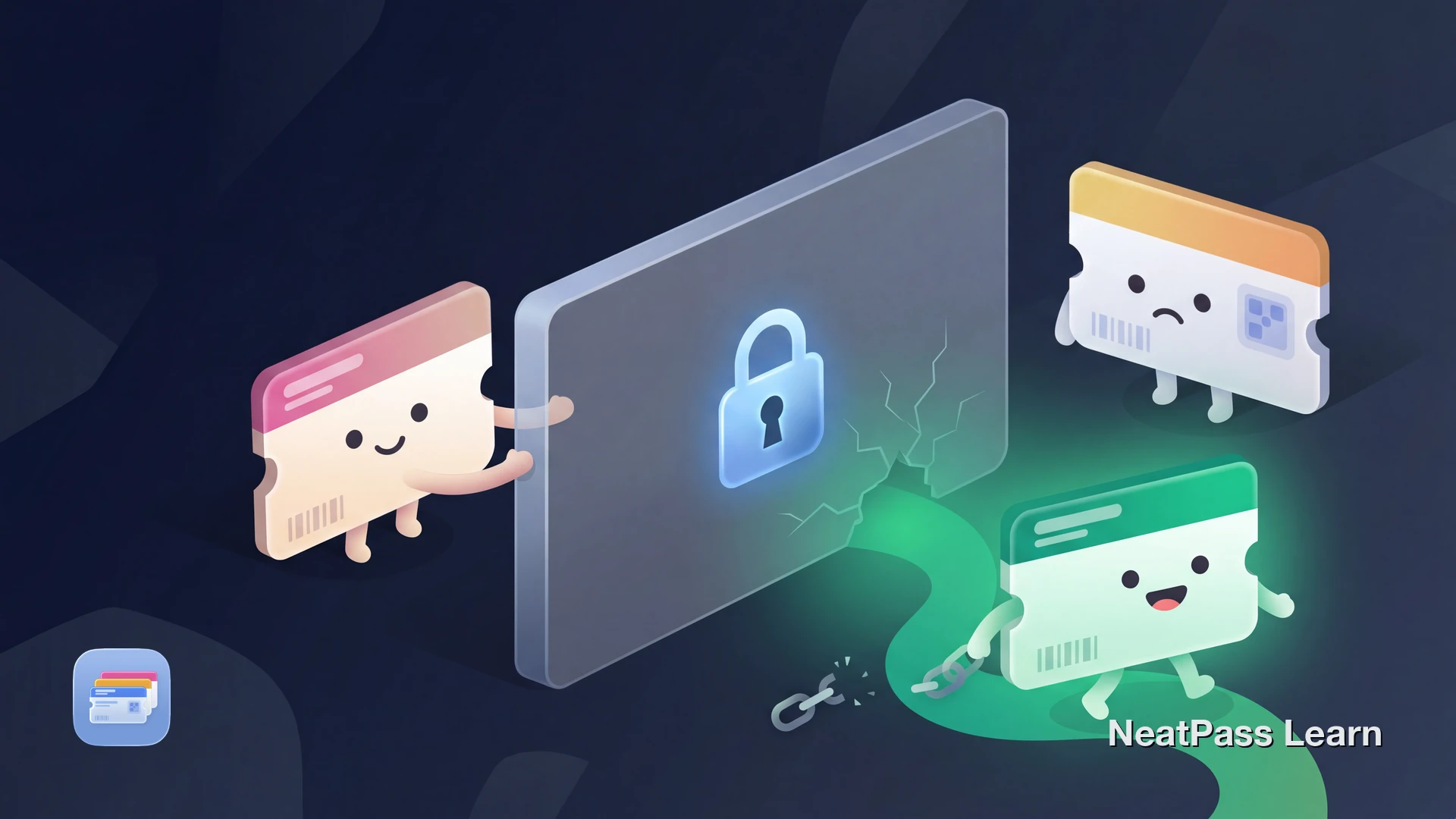
You shared a ticket or pass with a family member, and now Apple Wallet shows "Pass Disabled" or simply refuses to add it. This can happen when the pass's sharing rules do not allow the recipient's account, device, or verification state.
Sharing behavior is controlled by the issuer and pass configuration. An issuer may tie a pass to an account, device, or verification flow, so a normal share can fail or produce a disabled pass. Here is what is happening and what to try.
Why Shared Passes Get Disabled
When a pass shows "Pass Disabled" after sharing, the issuer may be enforcing a sharing or device restriction rather than Wallet malfunctioning. Common mechanisms include:
Issuer account or device binding
Some issuers link a pass to the purchaser's account or device through their own account-binding system. A different account or device can then trigger a disabled state.
sharingProhibited flag
Developers can set a sharingProhibited flag in the pass file. This removes the share button entirely from the Wallet interface.
Issuer anti-fraud controls
Some event-ticket systems use anti-fraud or digital-rights controls to prevent resale and unauthorized transfers outside their ecosystem.
Email verification
Some issuers require the account or email used in Wallet to match their account before activating a pass.
Common Sharing Scenarios That Fail
Event tickets
You bought concert or sports tickets for a friend. You try to AirDrop the Wallet pass, and their phone shows a disabled-pass message because the issuer associated it with another account or device. An official transfer flow may re-issue the ticket under the recipient's account.
Boarding passes
Some boarding passes may allow sharing, while others restrict it. If AirDrop fails, download each boarding pass individually from the issuer's app or confirmation email on each device.
Loyalty and membership cards
Loyalty cards from official issuer apps may have sharing disabled. A family member cannot simply copy your store card to their phone when the issuer has not enabled sharing. If the card uses a static barcode, each person can instead create their own pass from that barcode where the issuer and scanner accept the same code.
NeatPass supports multiple ways to get your cards into Wallet. See all available import methods to find the one that works for your situation.
Fixing Pass Disabled the Official Way
If you are dealing with an officially issued pass that shows "Pass Disabled," try these steps first:
Delete the disabled pass
Check the issuer's account or device requirements
Re-add from the source app
Use official transfer
Rotating barcodes cannot be shared
Having other issues with Wallet passes? Check the guide on troubleshooting Wallet issues for additional solutions.
Create shareable passes without the original issuer binding
NeatPass makes it easy to convert any ticket, pass, or loyalty card to Apple Wallet.
Creating Shareable Passes with NeatPass
The "Pass Disabled" error can affect passes with issuer-controlled account, device, or anti-fraud restrictions. When you create a pass with NeatPass from a static barcode, screenshot, or PDF, the resulting .pkpass file is a standard Apple Wallet pass without the original issuer binding, but it does not bypass account requirements or venue acceptance rules.
NeatPass extracts the barcode data from your source and creates a clean Wallet pass. For a static, non-rotating barcode, you can share it by AirDrop, Messages, or email when the issuer and scanner accept the copied code. The pass may be shown offline, but online validation can still be required.
No original account binding
A generated pass has no original issuer account binding. Share it only where a static, non-account barcode is accepted.
Works offline
A static barcode remains available offline, but the issuer or venue may still require online validation.
Add to multiple devices
A static, non-rotating, non-account pass may be added to multiple iPhones when the issuer accepts copies.
Barcodes scan identically
NeatPass preserves static barcode data, but the issuer and scanner still decide whether the copied code is accepted.
NeatPass performs barcode conversion on your device. Review the privacy FAQ for how app processing, sharing, and any enabled sync features handle data. Read the privacy FAQ for details on how your data stays private.
How to Create a Shareable Pass
Follow these steps to turn a static, non-rotating barcode into a shareable Apple Wallet pass:
Get the barcode
Import into NeatPass
Customize the pass
Add to Apple Wallet
Share with others
A static barcode can remain available offline, but acceptance and validation still depend on the issuer and scanner. Learn more about offline mode and why it matters at crowded venues.
You can personalize each pass with colors and labels. See the guide on customizing pass designs to make passes easy to identify.
Only works with static barcodes
Frequently Asked Questions
Share Your Passes While the Barcode Remains Valid
Apple Wallet's sharing restrictions are frustrating, but sharing is controlled by each issuer and pass configuration. By extracting a static barcode and creating a clean Wallet pass with NeatPass, you avoid embedding the original issuer's account or device binding. If the code is non-rotating and the issuer and venue accept copies, the pass may be added to another iPhone and display the same barcode. Offline display does not remove possible online validation.
Ready to create your first shareable pass? Check the guide on adding passes to Wallet to get started.
Ready to migrate your cards?
Download