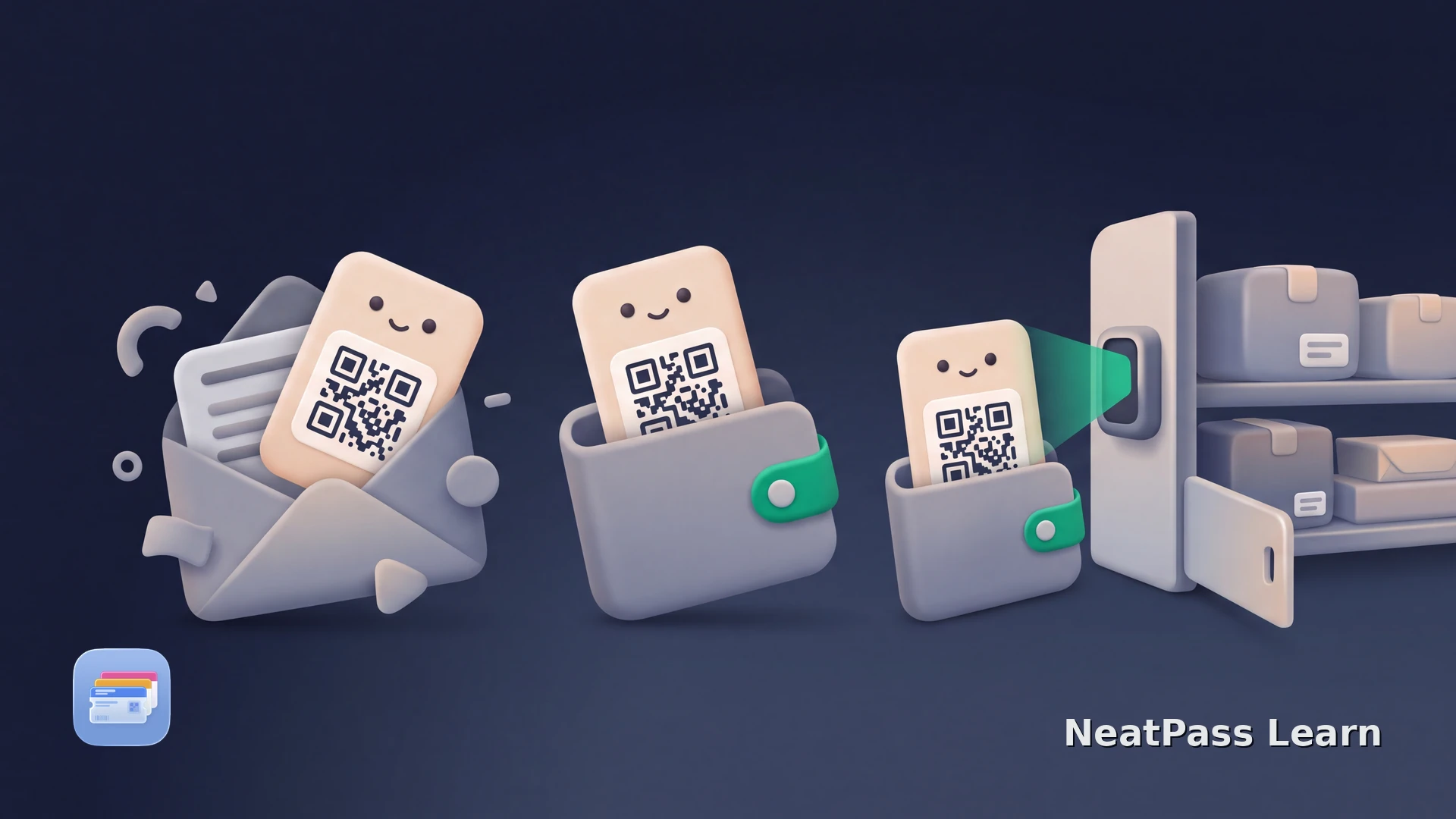
A parcel-shop collection code may be buried in an email, text message, or tracking page when you reach the counter. You can keep the same payload in an Apple Wallet pass only when the carrier issued a stable visual code and permits a saved copy for that collection flow.
That does not apply to every pickup system. Some parcel-shop codes remain fixed, while lockers can depend on a live app, account session, Bluetooth connection, or rotating security code. Identify the type before creating a static pass.
Parcel-Shop Code or Live Locker Credential?
Carriers such as DPD and PostNord use pickup notifications that can provide a customer with a collection code through an email, message, or web flow. When the visible code stays unchanged and the carrier explicitly allows you to present that saved display at a staffed parcel shop, it can be a suitable source for a Wallet barcode pass.
Do not copy a DHL Packstation pickup code
For fixed customer-issued codes, compare the source with the 18 NeatPass-supported barcode formats. NeatPass keeps a supported static payload as a visual pass; locker access still follows the carrier's live system.
The official DHL pickup-code help documents the 120-second rotation. DHL's Packstation instructions. The DPD Pickup Pass announcement describes a personal QR code delivered through an SMS or email link for scanning at a staffed shop. PostNord's collection guide likewise distinguishes an SMS or email QR code for a parcel shop from an app-and-Bluetooth locker flow.
How to Add a Stable Collection Code
The NeatPass's six import methods include the Share Extension, Files, Photos, Camera, Clipboard, and an empty pass. For an email, SMS, or tracking page, a clear screenshot, shared PDF, or copied barcode source is usually practical.
Read the current pickup notification
Check behavior and carrier permission
Import the stable source
Compare before export
Show it at the named parcel shop
Once the code passes those checks, use the NeatPass's Add to Apple Wallet steps. The resulting pass is a convenient display of the issued code, not a replacement for the carrier account or collection authorization.
Keep a compatible parcel-shop code ready in Wallet
NeatPass makes it easy to convert any ticket, pass, or loyalty card to Apple Wallet.
Use the Live Carrier Flow Where Required
Use the carrier service for any live credential or account step. A static Wallet pass displays a fixed code; it does not receive replacements or open app-controlled lockers. Keep the carrier notification available for identity checks, deadlines, and collection instructions.
Follow the carrier's current instructions even when the copied barcode still looks valid. A staffed parcel shop, locker, delivery depot, and partner counter may use different authorization methods. The carrier controls where the parcel can be released and what additional proof is required.
A Wallet Copy Is Not Collection Authorization
Keep the carrier notification
At the Collection Point
Go to the exact location named by the carrier and follow its handoff instructions. Present a stable visual code to the optical scanner at a staffed counter. At a locker, use the carrier's required live flow instead of assuming the Wallet pass can open it.
A saved visual pass remains available without reopening the message. The NeatPass offline mode guide explains local access. Offline display does not make a server-validated or rotating code independent from the carrier system.
If the optical reader struggles with the display, review the NeatPass faded-QR checks. If the code is rejected, return to the current carrier notification and ask the attendant. Do not replace a live locker credential with repeated static copies.
Frequently Asked Questions
Create a pass from a stable parcel-shop barcode
DownloadThe Right Code at Pickup
A stable parcel-shop code can be useful in Wallet, but the decision starts with the carrier's current flow. Copy only a fixed customer-issued visual code that the carrier permits you to save and present. Keep rotating, app-bound, Bluetooth, and locker credentials in the original carrier service, and bring every additional proof the pickup instructions require.