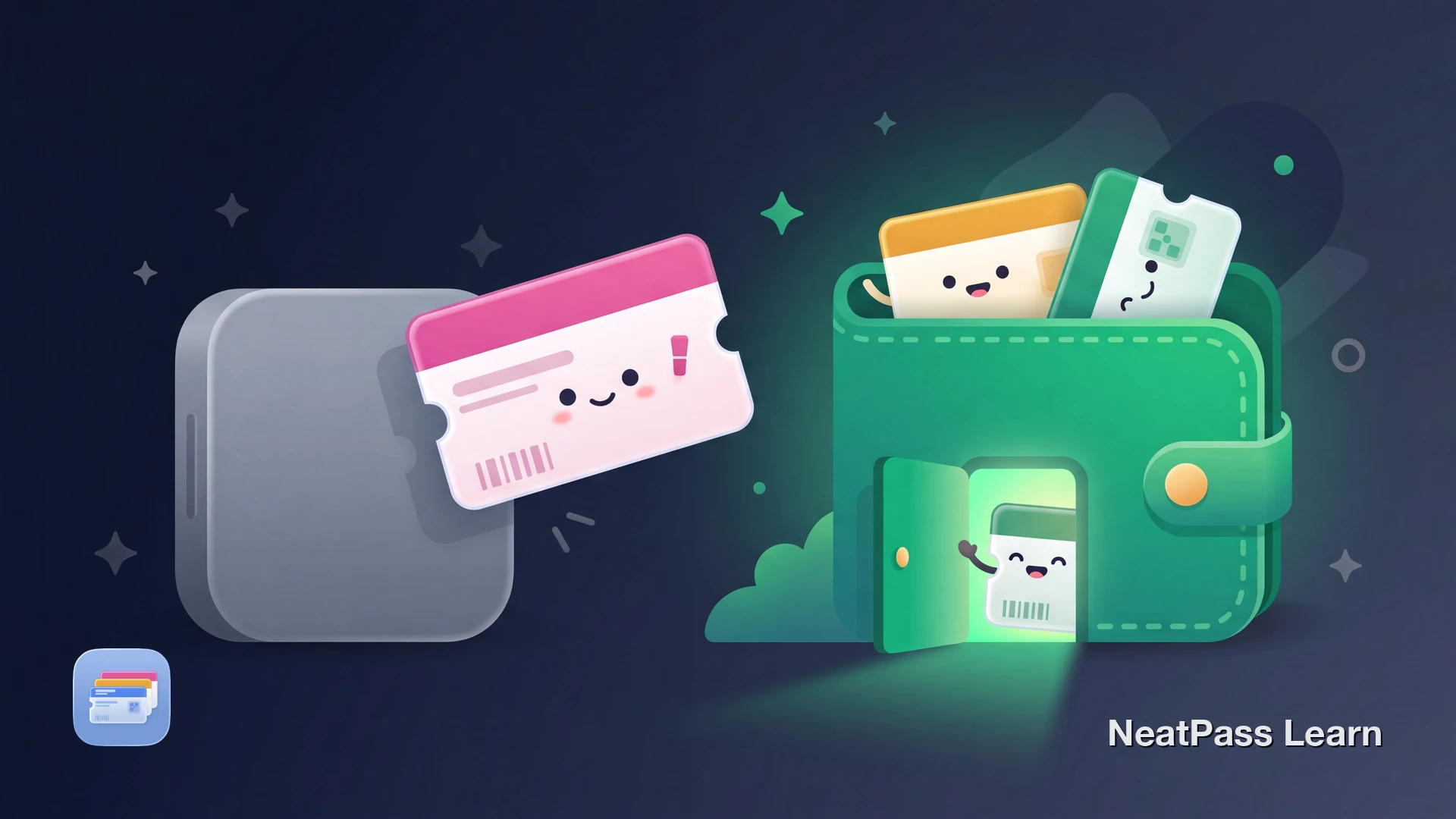
Sephora has no Add to Apple Wallet button. The Beauty Insider card lives only inside the Sephora app, which means opening the app, finding the Beauty Insider section, and waiting for the barcode to load every time you check out. Here is how to get that same barcode into Apple Wallet anyway.
Why Sephora Has No Wallet Button
Sephora no longer issues physical plastic Beauty Insider cards. The program is digital and account-based, and the scannable barcode is shown only in the Sephora app under the Beauty Insider section, below your name with your status and points.
Why relying on the app alone gets frustrating:
No native Wallet support
Sephora does not offer an Add to Apple Wallet button anywhere in the app
App load every time
You open the Sephora app and navigate to the Beauty Insider section just to show a barcode
Needs a connection
The app can be slow or stuck loading on weak in-store signal
Buried barcode
The scannable code sits inside the Beauty Insider screen, not one tap away
The good news? The same Beauty Insider barcode the app displays can be captured as a screenshot and turned into a native Apple Wallet pass.
The Barcode Is Already in the App
The Sephora app shows a scannable Beauty Insider barcode in the Beauty Insider section. Cashiers scan that barcode at checkout to credit your account. A Wallet pass can carry the exact same barcode data, so it scans the same way at the register.
You capture that barcode with a quick screenshot and bring it into Apple Wallet using a third-party app. NeatPass supports multiple import methods including photo import from your library, camera scanning, and manual barcode entry.
Ready to add your Beauty Insider card to Wallet?
NeatPass makes it easy to convert any ticket, pass, or loyalty card to Apple Wallet.
Screenshot the Barcode, Import to Wallet
The workaround is simple. Screenshot the Beauty Insider barcode in the Sephora app, then import that image into NeatPass. On-device AI reads the barcode and builds a native Apple Wallet pass. At staffed registers, cashiers scan that pass exactly like the barcode in the app.
How it works
Step-by-Step: Beauty Insider Card to Apple Wallet
Open the Sephora app
Screenshot the barcode
Open NeatPass
Import the screenshot
Add to Apple Wallet
Pro tip
Benefits of Beauty Insider in Apple Wallet
Once the Beauty Insider barcode lives in Apple Wallet, checking out gets faster and no longer depends on the Sephora app loading.
Instant lock screen access
Double-click the side button to show your Beauty Insider barcode at checkout
Works offline
No internet needed, the barcode is stored locally on your device
Location-based reminders
The pass can appear automatically when you arrive at a Sephora store
Clean barcode display
Wallet shows the barcode in a simple full-screen view for quick scanning
Independent of the app
Works even if the Sephora app is updating, logged out, or slow to load
Faster than the app
One tap from the lock screen instead of navigating through the Sephora app
The pass works completely offline with no internet connection needed. Access it from your lock screen widgets for even faster checkout. For details on how NeatPass handles data, see the privacy FAQ.
Frequently Asked Questions
Get your Beauty Insider card in Wallet
DownloadYour Beauty Insider Card in Wallet
Sephora keeps the Beauty Insider barcode locked inside the app, but a quick screenshot frees it. Import it with NeatPass and you get a native Wallet pass with fast lock screen access, offline support, and optional reminders near Sephora stores, while the Sephora app stays your home for live points and rewards.
Ready to get started? Check this guide on adding cards to Apple Wallet for a detailed walkthrough.