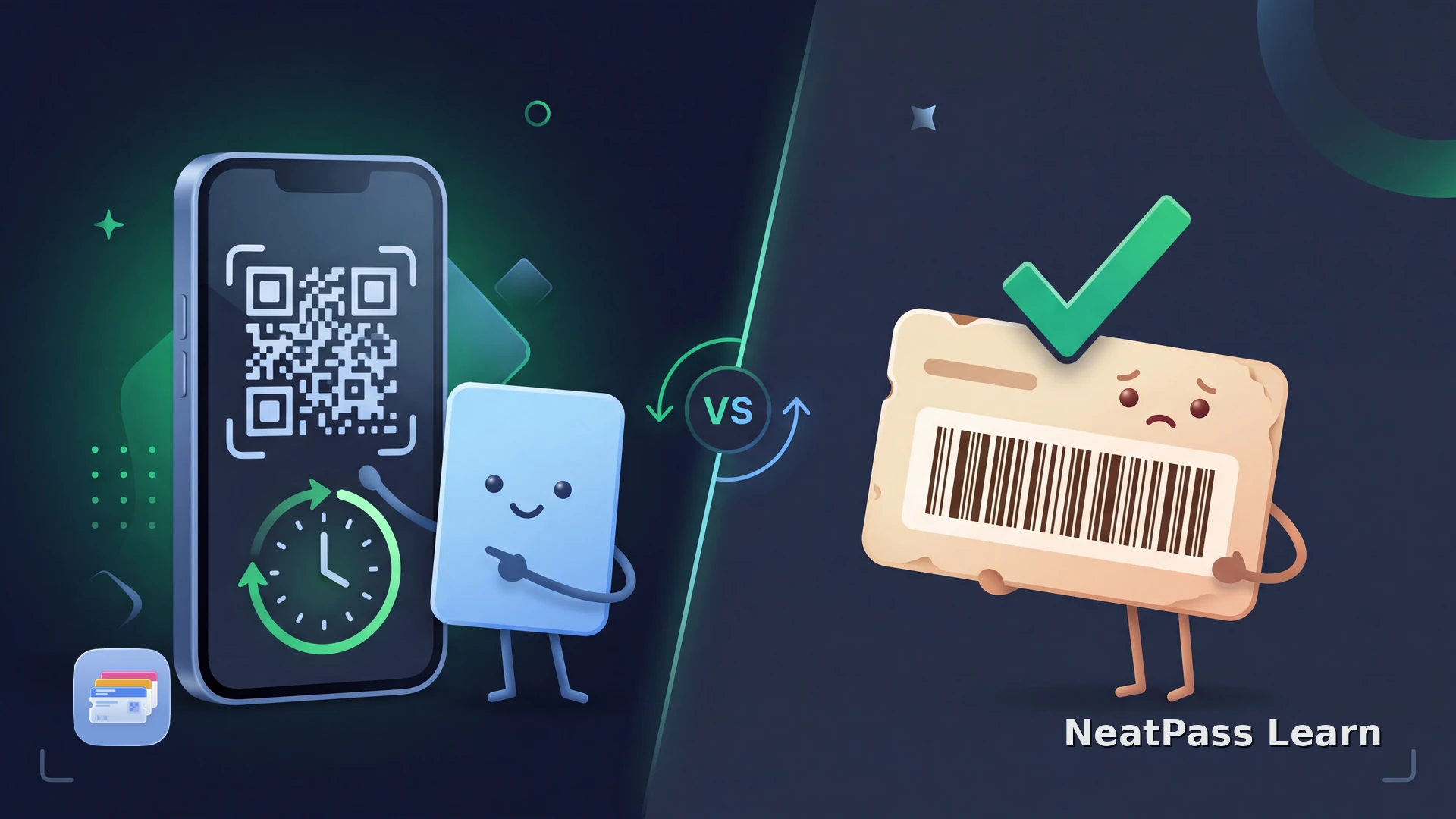
Tim Hortons Canada does not currently let you add a Tims Rewards card to Apple Wallet or Google Wallet. The QR code in the app changes every couple of minutes, and Tim Hortons Canada says screenshots expire, so a static Wallet pass would stop working.
Use the official Tim Hortons app for current rewards, Scan & Pay, offers, and account activity. If you have an older linked physical card with a genuine stable barcode, NeatPass can help you test that separate static source at checkout.
Why the app QR code cannot become a Wallet pass
Tim Hortons' Canadian support team says the Tims Rewards card is not available in Apple Wallet or Google Wallet at this time. The in-app QR code is part of a live rewards flow rather than a permanent card image. Scan & Pay connects the code with payment, offers, and reward activity, so copying the screen would not preserve the service.
Tim Hortons Canada's digital-wallet help article explains the Wallet limit, and its QR-code screenshot help article.
Do not screenshot the changing QR code
A safe static-card fallback
If you still have a linked physical Tims Rewards card, NeatPass can help you test its stable barcode as a separate Wallet shortcut. Tim Hortons Canada says it is no longer distributing new physical Tims Rewards cards, so this route applies only to an older card you already have. Keep the official app for live rewards and account features.
Dynamic app code
Keep the changing QR code in the official app; a static pass is for a separate physical barcode.
Physical card candidate
Test an older physical card when its printed barcode is clear and genuinely stable.
Checkout test first
Keep the original card and verify the new pass at a normal checkout before depending on it.
Before trying a physical card, check the NeatPass supported barcode formats and choose an appropriate NeatPass import method for the source you actually have.
Have a stable physical barcode to test?
NeatPass makes it easy to convert any ticket, pass, or loyalty card to Apple Wallet.
Test a physical card safely
Follow these steps only for a physical card. They do not apply to the changing QR code inside the Tim Hortons app.
Check the source
Confirm that it stays stable
Import the card
Add and test the pass
When the barcode is confirmed stable, follow the NeatPass Add to Wallet guide and read about NeatPass pass customization only after the scan works.
Keep live rewards in the official app
What Wallet adds for a stable card
If a physical barcode passes the test, Apple Wallet can make that one part of the experience easier to reach.
Available offline
A signed pass can be opened without waiting for the Tim Hortons app or a fresh account request.
Quick access
Open the pass from Apple Wallet instead of searching for the physical card in a crowded checkout line.
Same barcode data
For a successful static import, the Wallet pass preserves the barcode data from the source card.
Learn how NeatPass offline mode works, keep the source available with NeatPass original-document storage before importing a card.
Frequently asked questions
Keep a confirmed static card ready
DownloadUse the right Tims source
Keep the changing QR code and live rewards features in the Tim Hortons app. For an older physical card with a genuine stable barcode, NeatPass can provide a convenient Wallet shortcut after you compare it with the original and test it at checkout.