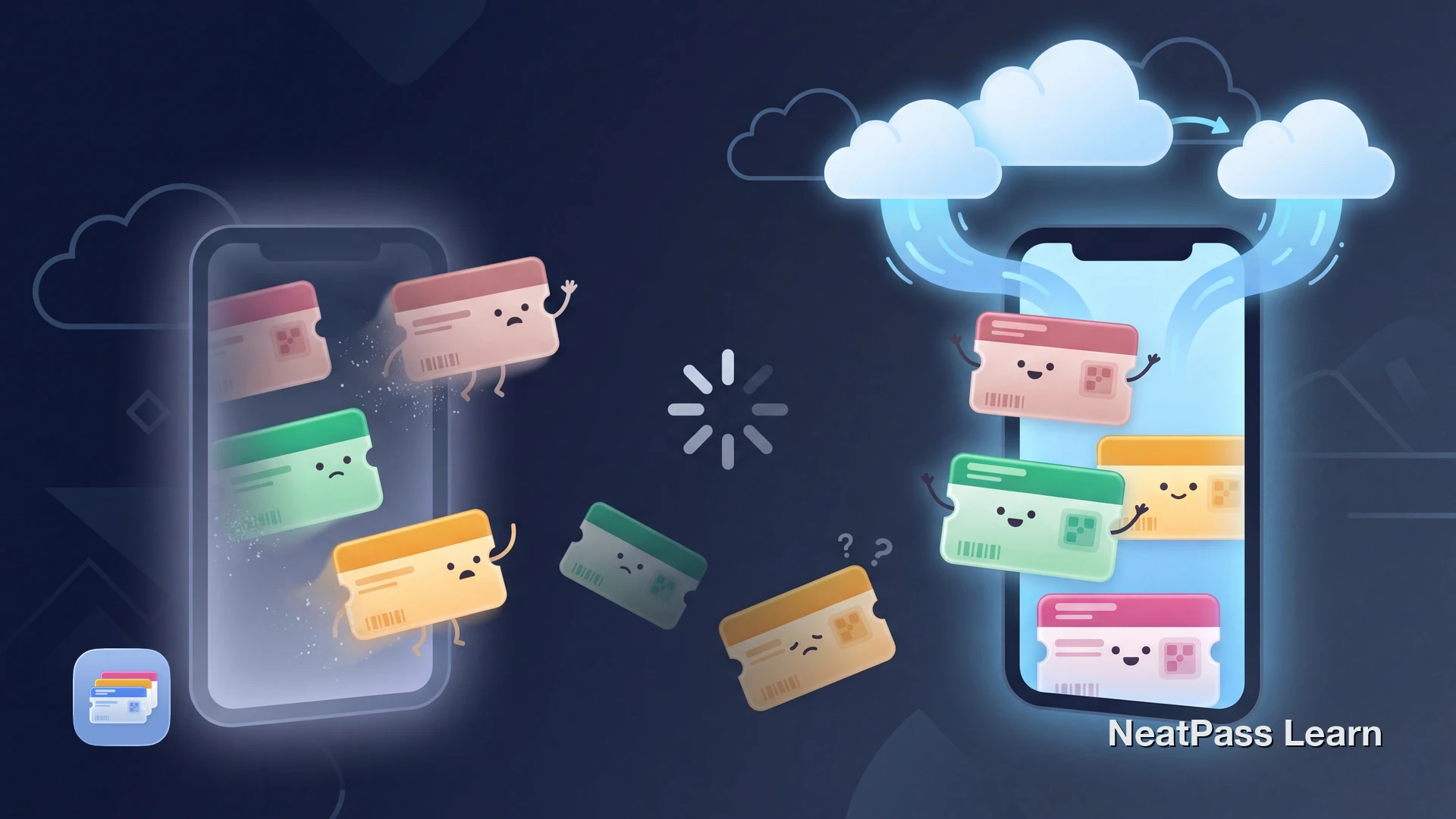
Factory resetting your iPhone wipes everything, including your Apple Wallet passes. Boarding passes, event tickets, loyalty cards, membership cards - all gone. Unlike photos or contacts, Apple doesn't make it obvious how (or if) your Wallet passes will come back.
The situation is confusing because Apple Pay cards, Wallet passes, and iCloud backups all behave differently. Here's what actually happens to your passes after a factory reset and how to protect them.
What Happens to Wallet Passes After a Factory Reset
When you factory reset your iPhone, all data on the device is erased. This includes every pass in Apple Wallet. Whether those passes come back depends entirely on what you had enabled before the reset.
There are two separate systems that could preserve your passes, and most people confuse them:
- Stores passes in iCloud separately from backups
- May become available again after you sign back in
- Must be enabled before the reset
- Only data that finished syncing can be available afterward
- Apple does not document it as a Wallet-pass recovery method
- Do not rely on it when Wallet sync was off
- Keep issuer links and original files instead
- No 'recently deleted' folder for passes
Apple lists Wallet as an iCloud data category, but its backup documentation does not promise that Wallet passes can be recovered from an iCloud or computer backup.
Why Recovery Is So Unreliable
Recovery depends on whether Wallet data finished syncing before the reset and whether the issuer still provides the pass. Apple does not document a backup-based recovery path for Wallet passes.
No clear documentation
Apple lists Wallet as iCloud data but does not promise Wallet-pass restoration from iCloud or computer backups.
Two conflicting systems
Wallet iCloud sync and device backups are separate; only completed Wallet sync can make pass data available again.
No recovery options
There's no 'recently deleted' folder, no archive, and no way to bulk-restore passes from within Apple Wallet.
Re-adding is painful
Apple suggests contacting the original issuer for each pass. For dozens of loyalty cards and old tickets, that's not realistic.
Protect your passes from data loss
NeatPass makes it easy to convert any ticket, pass, or loyalty card to Apple Wallet.
Apple Pay Cards vs. Wallet Passes
It's important to understand the difference between Apple Pay cards and Wallet passes, because they behave completely differently after a factory reset:
Apple Pay cards (credit/debit)
Payment-card data is removed when the device is erased. Cards must be added again, and the issuer may require verification.
Wallet passes (.pkpass files)
Boarding passes, event tickets, and loyalty cards may become available again only if Wallet iCloud data finished syncing; otherwise re-add them from the issuer.
Apple Cash
Apple Cash is separate from Wallet passes; balance and availability depend on your Apple Cash account and region, and setup or verification may be required again.
The bottom line: payment cards need to be added again after the erase. For Wallet passes, check synced Wallet data and the original issuer source.
How to Recover Passes After a Factory Reset
If you've already reset your iPhone, here's what to try:
- Open Settings, tap your name, then iCloud > See All (or Saved to iCloud). Open Wallet and make sure it is enabled.
- If passes don't appear, you can try toggling Wallet off in iCloud settings, restarting your iPhone, then turning it back on. This is non-guaranteed troubleshooting.
- Check your email for the original .pkpass files or 'Add to Apple Wallet' links from ticket providers, airlines, and loyalty programs.
- If Wallet sync was off or incomplete, re-add each pass from its issuer, original .pkpass file, or Add to Apple Wallet link. Apple does not document computer backups as a Wallet-pass recovery method.
Important
Need to re-add passes? Check out the different import methods available in NeatPass, or see how adding to Apple Wallet works.
How NeatPass Protects Your Passes
NeatPass keeps pass content on your device and can sync supported library data to your personal Apple iCloud when optional iCloud Sync is enabled. After a reset, only data whose sync completed can be recovered; otherwise recreate the pass from its original source.
Optional iCloud sync
Supported library data can sync to your personal Apple iCloud when you enable iCloud Sync and allow it to complete.
Conditional restoration
After a reset, reinstall NeatPass and enable iCloud Sync. Data that completed syncing may become available again.
Check what synced
Check that the items you need have finished syncing before erasing the device, and keep original ticket files as a fallback.
No account required
Pass content is processed on device; only a cryptographic hash is sent to the Wallet signing service, while optional sync uses your Apple iCloud.
Pass content is processed on device. Only a cryptographic hash is sent to the Wallet signing service, and optional sync stores supported data in your Apple iCloud. Read the privacy FAQ to learn more, or see the data management guide for details on how your data is stored.
How to Prepare Before Your Next Reset
Whether you use Apple Wallet directly or NeatPass, take these steps before any factory reset:
- Open Settings > [Your Name] > iCloud > See All (or Saved to iCloud) and verify that Wallet is enabled.
- If you use NeatPass, open the app and check that iCloud Sync shows a green status indicator in Settings.
- Keep original ticket PDFs, emails, and .pkpass files; Apple does not document computer backups as a Wallet-pass recovery method.
- Wait for any pending syncs to complete before starting the reset.
After a pass has been created and added, it can display without internet; creating and signing a new pass requires service access. Learn about offline mode and how to view original source files attached to your passes.
Keep your originals
Frequently Asked Questions
Keep your passes safe across resets
DownloadPrepare Your Passes Before a Reset
A factory reset erases the device. Wallet data that completed iCloud sync may become available again, but Apple does not promise Wallet-pass recovery from device backups.
With NeatPass, enable optional iCloud Sync and wait for it to complete before resetting. Keep original ticket files and issuer links so you can recreate anything that was not synced.