Avianca does support Apple Wallet. After you check in through the Avianca app or avianca.com, you can usually add the boarding pass, or pasabordo in the Spanish interface, straight to Wallet. The trouble starts when the pass never reaches Wallet in the first place, and that happens more often than the airline lets on.
Book through a travel agency, a corporate booking tool, or an online travel site, and the confirmation email often arrives as a plain PDF with no Add to Wallet button. Screenshots and forwarded passes lose the scannable data. Connecting international itineraries sometimes export inconsistently. This guide covers the native flow and, more importantly, how to rescue a boarding pass when Wallet is nowhere to be found.
Adding an Avianca Pass from the App or Website
When the native flow works, it is the fastest path. Avianca issues a standard Apple Wallet boarding pass once check-in is complete, and it lands in the same place as every other pass on your device.
Check in online
Open the boarding pass
Add to Apple Wallet
If you have never done this before, the general process is covered in the guide on adding passes to Apple Wallet. Once the pass is in Wallet, it updates gate and time changes automatically.
Check-in timing
LifeMiles, Star Alliance, and Your Boarding Group
Avianca is Colombia's flag carrier, with its hub at Bogota El Dorado (BOG), serving domestic Colombia, Central and South America, and select long-haul routes to the US and Europe. It is a Star Alliance member, and its loyalty program is LifeMiles, with tiers Red Plus, Silver, Gold, and Diamond. Gold and Diamond map to Star Alliance Gold.
Your tier and boarding group are encoded in the boarding pass barcode, so they travel with the pass wherever it lives. Whether the pass came from the app or from a rescued PDF, the gate scanner reads the same data and sends you to the same group.
Keep the confirmation too
Apple Watch and iOS 26
A boarding pass in Wallet syncs to Apple Watch automatically, so you can raise your wrist at the gate instead of digging for your phone. It also surfaces on the lock screen near departure time, and you can keep quick access through lock screen widgets.
- Syncs to Apple Watch
- Auto-brightens the barcode
- Shows on the lock screen at departure
- Works fully offline
- Live Flight Tracking is opt-in per airline
- Live adopters include United, American, Delta, Air Canada
- Avianca has not adopted it as of 2026
- Independent of who created the pass
Be clear on one point. The OS-level Live Activity behavior works on any valid Wallet boarding pass, but the airline-specific enhanced experience with rich Live Flight Tracking is a program each carrier opts into. Avianca has not joined it yet, and no third-party tool can unlock an airline feature the airline has not enabled. You can still learn what Wallet does natively in the boarding pass in Apple Wallet overview.
When the Add to Wallet Button Is Missing
This is where most people get stuck. The booking came through an online travel agency or a corporate travel tool, so the email is a plain PDF with no Wallet button. Or someone forwarded a screenshot that will not scan. Or a multi-passenger PDF bundles everyone onto one document.
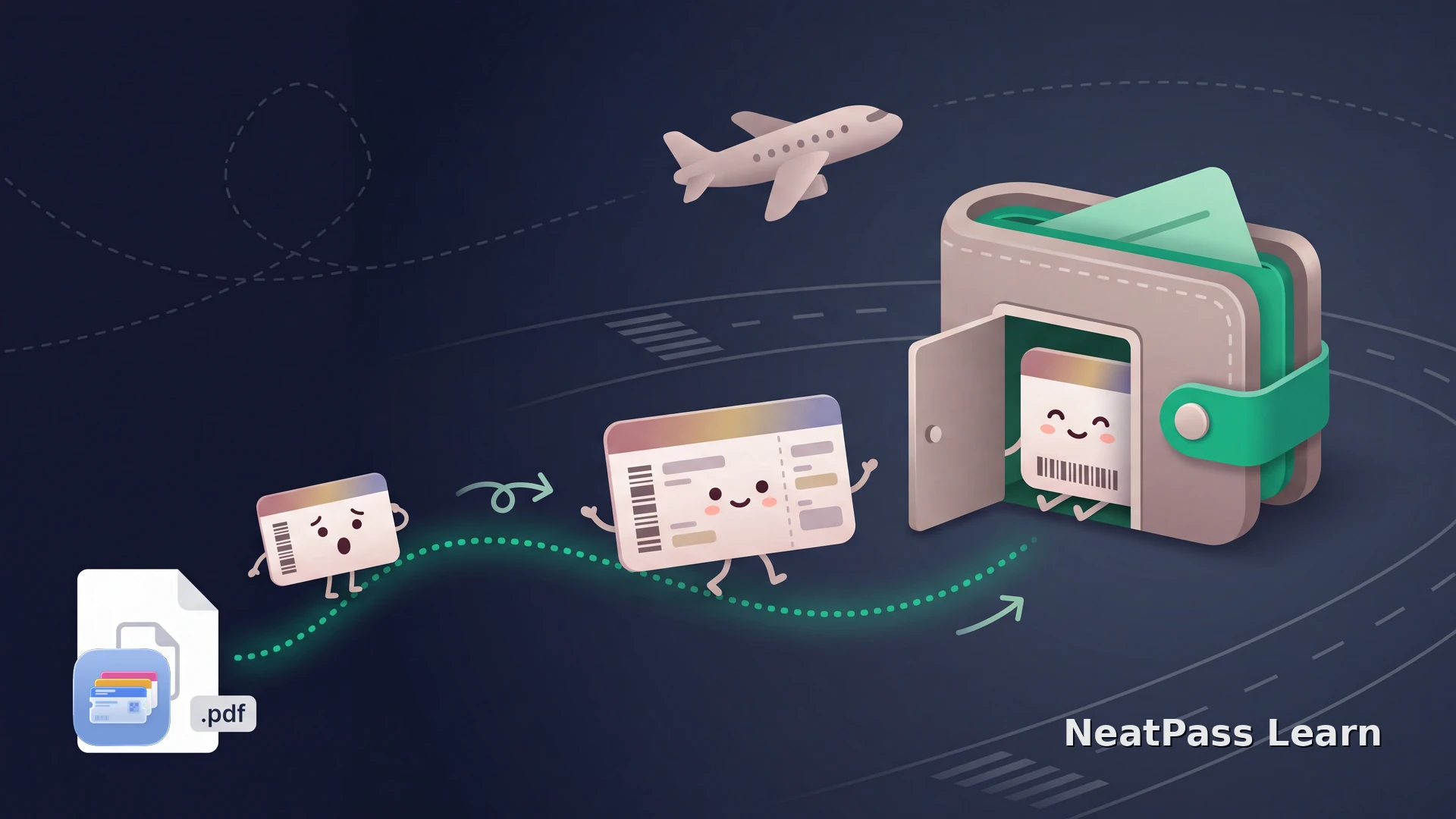
A boarding pass barcode follows the IATA BCBP standard, and every field a scanner needs is encoded right there in the code. NeatPass reads that barcode out of the PDF or image and builds a native Wallet pass carrying the identical BCBP data, then keeps the original document alongside it. No accounts, no cloud uploads; your boarding pass data stays on your device.
Turn any boarding pass PDF into a Wallet pass
NeatPass makes it easy to convert any ticket, pass, or loyalty card to Apple Wallet.
Save the pass file
Open it with NeatPass
Add to Apple Wallet
Avianca prints PDF417 on paper passes and commonly uses Aztec on mobile, with QR and Data Matrix also permitted. NeatPass handles the full range of supported barcode formats, and you can pick from several import methods depending on how the pass reached you. The encoded fields scan the same regardless of symbology.
What You Get Once It Is in Wallet
A rescued pass behaves like any other Wallet boarding pass. The barcode carries the same data the gate expects, so there is no downgrade in function.
Scans at the gate
Identical BCBP data means the reader accepts it the same way as an app-issued pass.
Works offline
No login, no signal needed. The pass is ready even in a dead zone at the terminal.
On your wrist
Syncs to Apple Watch so you can board without reaching for your phone.
Original kept
NeatPass stores the source PDF or image next to the pass for reference.
Because the pass never needs a network, it stays reliable when the airport wifi buckles. The details are in the note on offline mode. If you are traveling with family, you can hand off individual passes using the share extension.
Troubleshooting
Most snags have a quick fix.
- No Add to Wallet button - the pass came from an OTA or corporate tool. Import the PDF into NeatPass to rebuild it.
- Screenshot will not scan - a flattened image can still hold a readable barcode. Let NeatPass scan it and generate a fresh pass.
- One PDF, several passengers - process the document once per traveler so each person gets an individual pass.
- Connecting international segments - if the app exports only one leg, import each segment PDF separately.
Check details before boarding
Frequently Asked Questions
Get your Avianca pass into Wallet
DownloadYour Boarding Pass, Ready at the Gate
When Avianca hands you a Wallet pass, take it. When it hands you a bare PDF instead, you are not stuck. NeatPass turns that document into a native Wallet boarding pass with the same barcode, on your phone and your wrist, working offline the moment you reach the terminal.