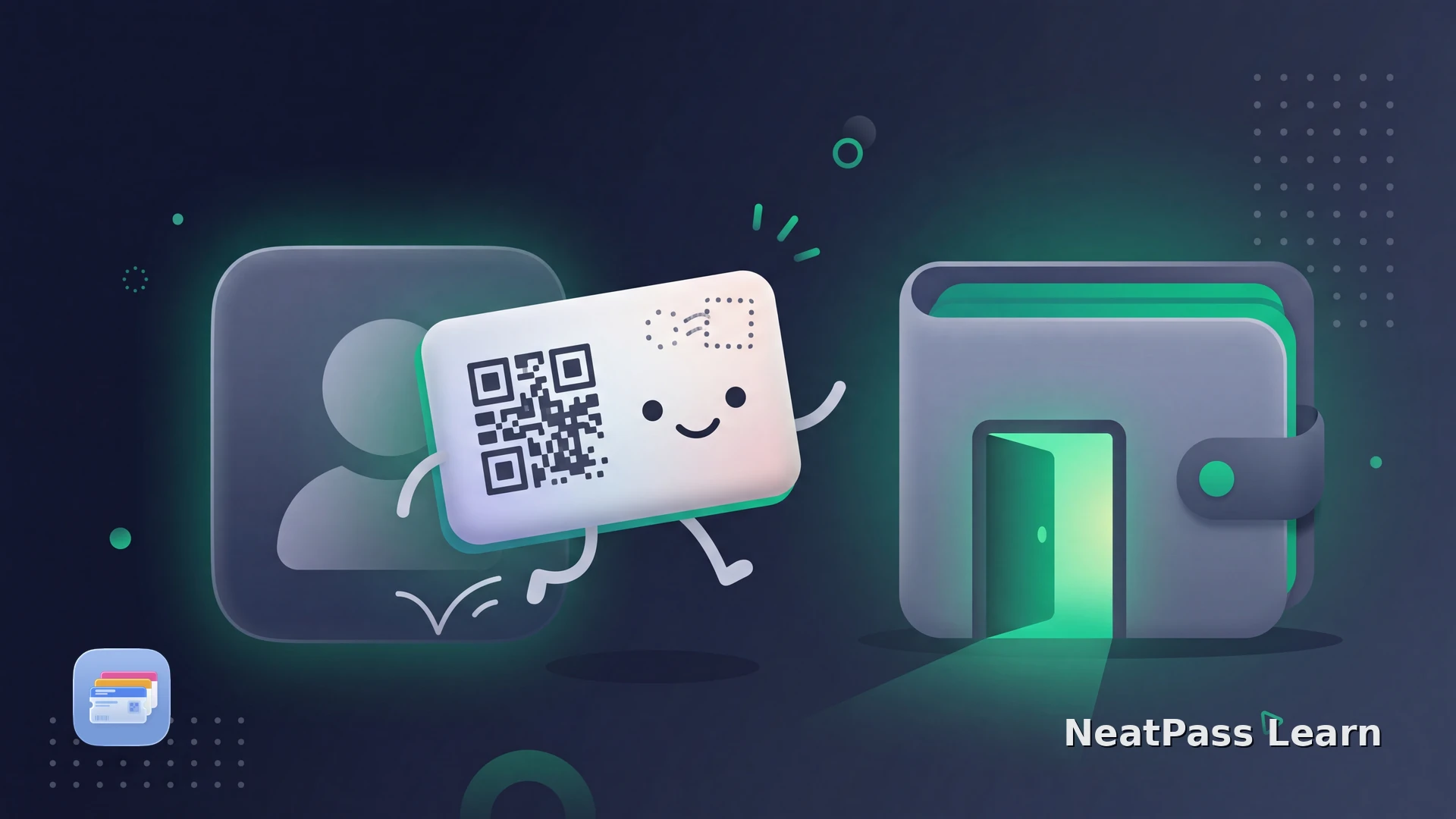
The Greggs app will not put your Rewards card in Apple Wallet. The QR code you scan at the till lives inside the app, so every visit means opening it and tapping through to Scan. If you want the code ready in Wallet for quick stamp collecting, you can build a standalone pass yourself.
Greggs Rewards gives you digital stamp cards across categories like hot drinks, savouries, and sweet treats. Collect nine stamps in a category and the tenth is free. The QR code you scan is what earns those stamps, and a Wallet pass can surface it in a tap.
How Greggs Rewards Works
Understanding the flow matters here, because a Wallet pass helps with one part of it and not the other.
Scan to collect stamps
Show your QR code at the till before you pay to earn a stamp on that product category.
Code lives in the app
Greggs keeps the QR inside the app under Scan, with no Add to Apple Wallet button anywhere.
Rewards need a toggle
To redeem a free item you toggle the reward on in the app before scanning, so redemption stays app-side.
You reopen it each visit
Without a saved pass, every stamp means launching the app and finding the Scan screen again.
A Greggs stamp card is really a digital punch card, and those work nicely in Wallet.
Keep your Greggs QR ready in Apple Wallet
NeatPass makes it easy to convert any ticket, pass, or loyalty card to Apple Wallet.
Build a Greggs Pass with NeatPass
NeatPass reads the QR code from your Greggs Rewards screen and turns it into a normal Apple Wallet pass. The code stays identical, so the till reads it the same way when you collect a stamp.
Screenshot your Greggs QR
Scan it into NeatPass
Name and style the pass
Add it to Apple Wallet
NeatPass supports the barcode and QR formats loyalty cards use, and offers several import methods for getting the code in.
Redeem rewards in the app
What You Get in Wallet
One tap to collect
Double-click and the QR is on screen. No app launch, no tapping through to Scan.
Works offline
The code is stored on your iPhone, so a busy shop with poor signal never slows you down.
Same QR code
The pass carries the same code as your app, so the till adds your stamp as usual.
Lock screen access
Pin it to a widget for one-glance access while you are still in the queue.
Add the pass to a lock screen widget, rely on offline mode in the queue, and see how your data is handled in the privacy FAQ.
Frequently Asked Questions
Your Greggs stamps, one tap from the queue
DownloadQuick Access in the Queue
Greggs keeps the Rewards code locked inside the app, so every sausage roll means tapping through to Scan. A standalone pass puts the QR one double-click away, ready offline while you are still in the queue, so you never miss a stamp.
For a walkthrough of the add process, see the adding to Wallet guide.