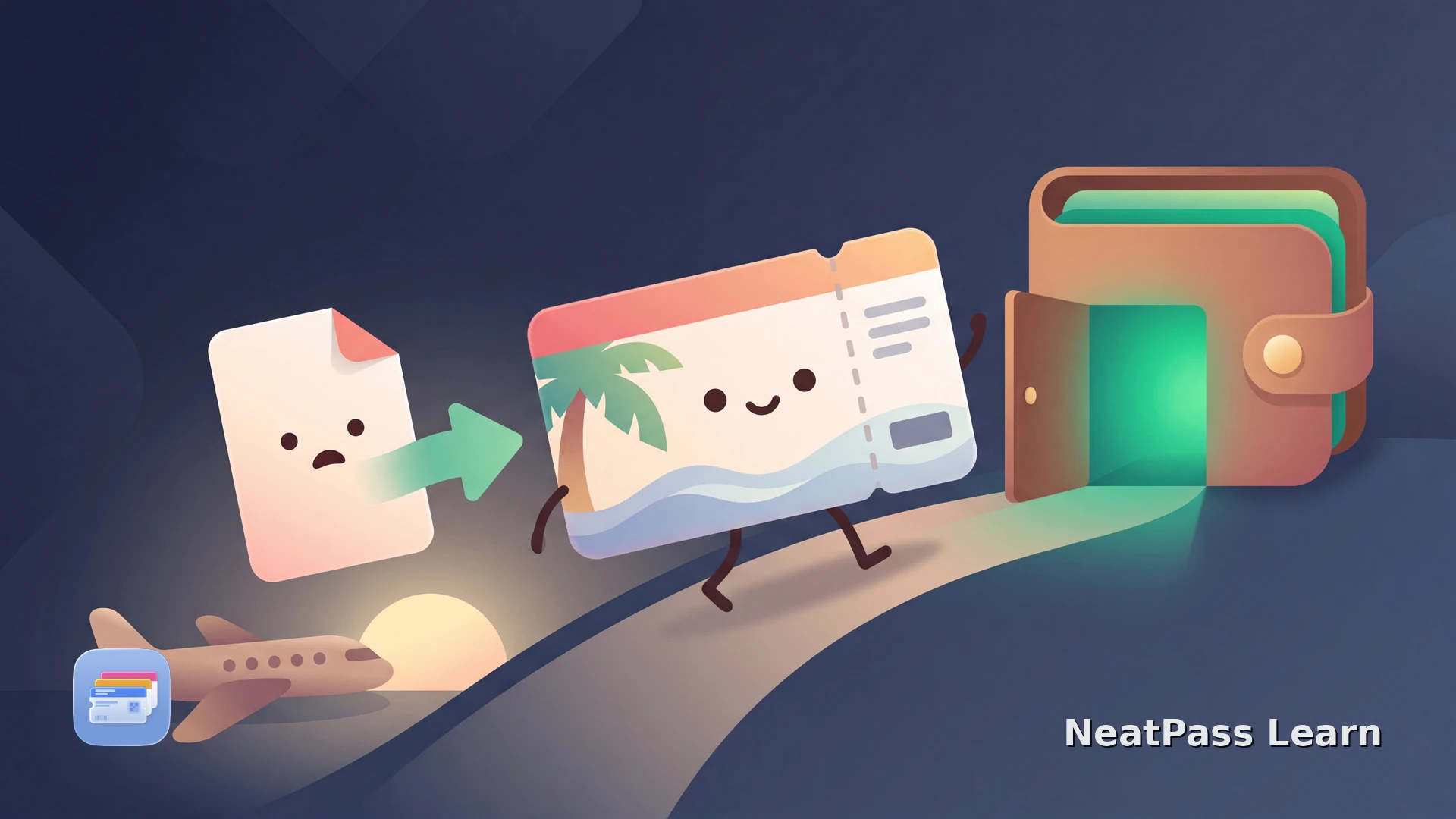
Hawaiian Airlines does issue native Apple Wallet boarding passes. Once you check in through the app, the pass comes with an option to add it straight to Wallet. For most trips the built-in flow works fine and this article ends there.
The trouble starts in the failure cases. The mobile website and the confirmation email do not always show an Add to Wallet button, even after check-in, so the app is the reliable path. An emailed PDF with no button, a screenshot that will not scan, a combined PDF for several passengers, or an in-app export that quietly stalls all leave you stuck. When that happens, you still have a valid barcode, and that barcode is all you need to rebuild a working Wallet pass.
Timing also matters more than usual right now. Hawaiian went through a large 2026 platform transition after the Alaska Air Group merger, so which app you open and which loyalty program you look at have both changed. The barcode standard behind the pass has not, which is why a rebuild still works exactly the same.
Adding a Hawaiian Boarding Pass from the App
Start with the official route, since it is the fastest when it works. Check-in opens 24 hours before departure and closes no later than 60 minutes before, so give yourself a window. Use the unified Alaska Hawaiian app, which launched on March 30, 2026 and replaced the standalone Hawaiian app that retired on April 21, 2026.
Check in first
Open your trip
View the boarding pass
Add to Apple Wallet
If you have never done this before, the guide to adding passes to Wallet walks through what the confirmation screen looks like and where the pass ends up.
The phone is the boarding pass now
The Alaska Merger and What Changed in 2026
Alaska Air Group acquired Hawaiian in a deal that closed in 2024, and in 2026 both carriers cut over to a single shared Sabre passenger system around April 22, 2026. All flights now use the AS code. The brands stay distinct, but they run on one platform, which is why the app and loyalty pieces were merged.
The loyalty side folded too. HawaiianMiles and Alaska Mileage Plan combined into a single program, Atmos Rewards, fully integrated in April 2026. Former Pualani status mapped one to one to the Atmos tiers of Silver, Gold, Platinum, and Titanium.
Hawaiian also adopted Alaska's A through F alphabetical boarding groups, and that group prints on the pass. When a pass is rebuilt from its barcode, the printed group and the encoded data carry over exactly as issued. A Wallet pass mirrors what the airline already assigned; it does not change your status, upgrade, or downgrade anything.
Apple Watch and iOS 26
Once the pass is in Wallet, it syncs to your Apple Watch, so you can scan straight from your wrist at the gate. It also surfaces on your Lock Screen widgets as departure approaches, no digging through an app required.
- Scans from Apple Watch at the gate
- Appears on the Lock Screen near departure
- OS-level Live Activity flight tracking on iOS 26
- Works offline once added
- Airport terminal maps in Wallet
- Find My baggage integration
- Limited to partner carriers
- Alaska and Hawaiian are not partners as of 2026
This distinction matters. The OS-level flight-tracking Live Activity in iOS 26 works on any valid Wallet boarding pass, including Hawaiian's. The airline-specific enhanced program, with terminal maps and Find My baggage, is a separate opt-in that neither Alaska nor Hawaiian currently joins. The carriers with that deeper integration are United, American, Southwest, and Air Canada. You can read more in the guide to iOS 26 live flight tracking.
When the Add to Wallet Button Is Missing
This is where a rebuild helps. Sometimes the mobile website or the confirmation email shows no add-to-Wallet button even after check-in, or an in-app export stalls, or a single PDF bundles several passengers together. A screenshot of the barcode will not scan reliably at the gate either.
NeatPass reads the existing barcode from that PDF or image and rebuilds a proper Wallet pass around it. The encoded IATA BCBP data is preserved exactly, so it scans at the gate just like the original. The source document is kept alongside the pass, so you never lose the paperwork you started with.
Ready to migrate your cards?
NeatPass makes it easy to convert any ticket, pass, or loyalty card to Apple Wallet.
Grab the PDF or screenshot
Import into NeatPass
Check the details
Add to Apple Wallet
Hawaiian barcodes follow the IATA BCBP standard. Mobile passes are usually Aztec, sometimes QR, and printed passes use PDF417. The list of supported barcode formats covers all of them, and the import methods cover every way to get the pass in, whatever format landed in your inbox.
Why a Wallet Pass Is Worth It
A reliable digital pass matters most on short interisland hops around the Neighbor Islands, where boarding moves quickly and the phone is your only pass. A pass sitting in Wallet opens instantly, with no app and no login between you and the gate.
Scans at the gate
Identical BCBP data means the reader treats it exactly like the airline pass.
Works offline
No login, no loading spinner, no dependence on airport wifi.
On your wrist
The pass syncs to Apple Watch so you can scan hands-free.
Original kept safe
The source PDF or screenshot stays stored alongside the pass.
Because the pass lives on the device, it opens instantly even with no signal. The offline mode overview explains why that matters in a crowded terminal where cellular service crawls. Privacy stays simple too: no accounts, no cloud uploads, and your boarding pass data stays on your device, as the privacy FAQ lays out.
Traveling as a group? Once one pass is rebuilt, the share extension makes it easy to send a boarding pass to the phone it belongs on.
Troubleshooting
Most snags come down to the source barcode. Here are the common ones and how to clear them.
- Add to Wallet is missing on the website or email - the mobile site and confirmation email do not always show the button. Use the app, or import the PDF into NeatPass and rebuild from its barcode.
- Screenshot will not scan - a photo of a barcode is not a real pass. Import the image so the barcode is decoded and re-encoded cleanly.
- Combined multi-passenger PDF - one file with several barcodes. Import it and select each passenger's pass separately.
- In-app export stalls - fall back to the emailed PDF and rebuild from there.
Keep the original until you board
Frequently Asked Questions
Ready to migrate your cards?
DownloadYour Boarding Pass, Ready for the Islands
Hawaiian's native Wallet flow handles the happy path, and when the website, email, or an in-app export stumbles, a rebuild from the barcode gets you a pass that scans exactly the same. Either way, your boarding pass ends up where you want it, on your phone and your wrist, working offline, ready for the gate.