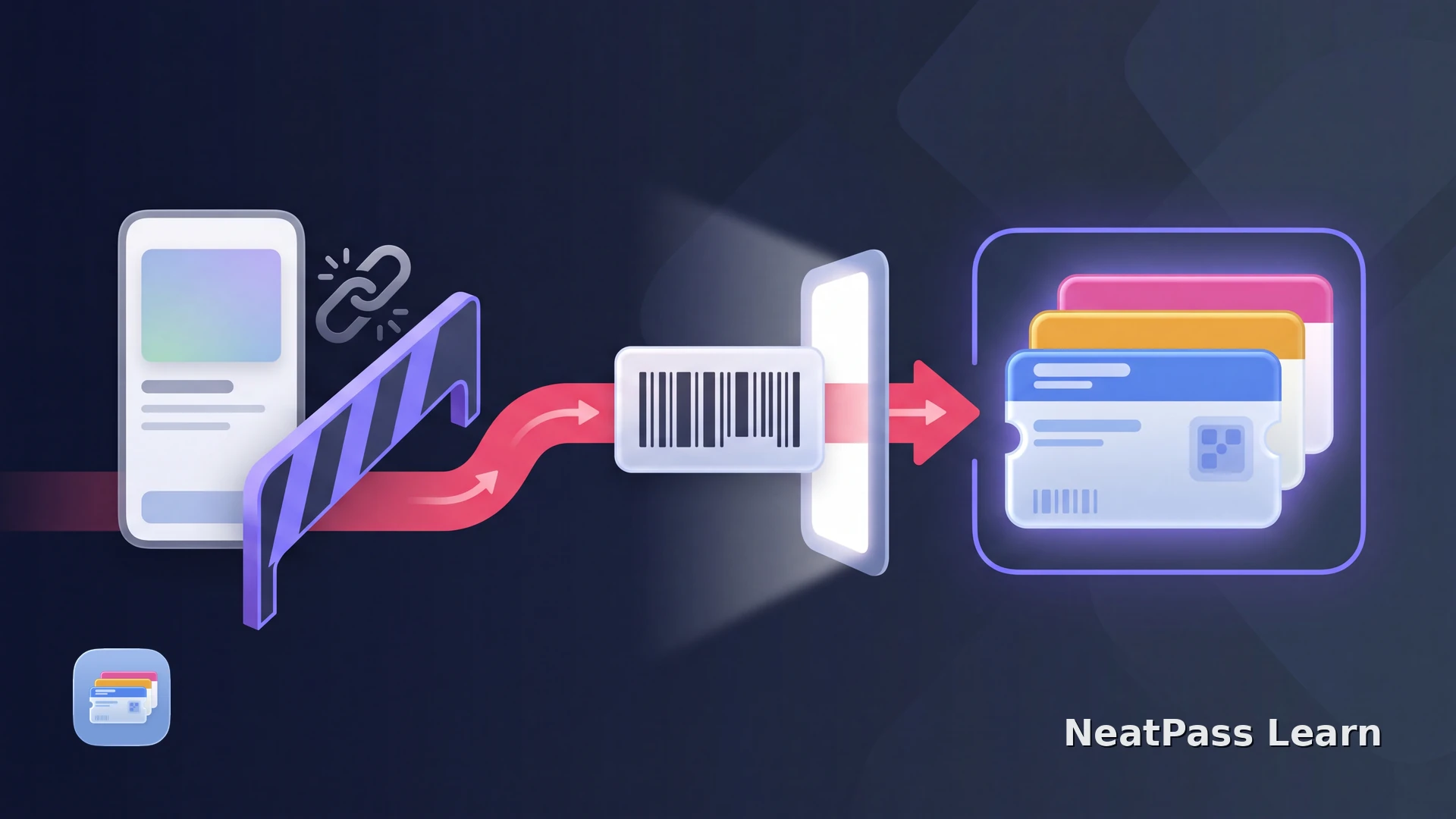
SuperCards can scan loyalty cards, let you enter a card manually, import screenshots in batches, and share links that open in the app. If you want the barcode cards in Apple Wallet instead, use the visible card data as your migration source.
For Apple Wallet, use the visible card data as a migration source: keep a clear screenshot of each static barcode or photograph the physical card, then create a fresh Wallet pass in NeatPass. SuperCards has no documented native Apple Wallet export.
What SuperCards can provide
SuperCards is useful for gathering loyalty cards in one place on iPhone and Apple Watch. The iPhone app can scan a card, accept details entered manually, import screenshots in batches, and share links that open in the SuperCards app. The Apple Watch app displays your cards on your wrist.
Use a visible static barcode screenshot or the physical card when creating a Wallet pass. Shared SuperCards links remain useful inside SuperCards and open the card in that app.
Scanned cards
Show the static barcode clearly and capture it as an image
Manually entered cards
Use the physical card when the app view does not show a barcode
Screenshot batches and links
Keep an image source; shared links still open in SuperCards
Use the barcode as the Wallet source
Why NeatPass is the next step
NeatPass handles the point where a barcode exists but an issuer has not supplied an Apple Wallet file. It reads a screenshot or photo on the iPhone and creates a native Wallet pass from the data you can see.
Before importing, check the current supported barcode guide and the barcode conversion guide. NeatPass creates a new static pass from that source. Keep SuperCards for the original link and any live card context. NeatPass runs on iPhone with iOS 18.1 or later. The free tier lets you create and add one pass; a one-time 4.99 EUR lifetime unlock removes the limit for additional passes, with App Store pricing varying by storefront.
Move a SuperCards barcode to Apple Wallet
NeatPass makes it easy to convert any ticket, pass, or loyalty card to Apple Wallet.
Move the barcode, not the app link
NeatPass offers six import methods, so you can use a screenshot, camera photo, file, or share sheet source.
Open the card in SuperCards
Create a clean source image
Import the image into NeatPass
Add the new pass to Wallet
If the source image is in another app, use the NeatPass share extension instead of relying on a SuperCards link that still needs the app.
When the details look right, follow the add-to-Wallet guide to finish the handoff. If you are moving several cards, the free tier lets you create and add one pass; further passes require the one-time lifetime unlock.
Keep the original card and image
A new NeatPass pass contains the static barcode data and visible details you imported. Keep SuperCards available for account state, live balances, issuer updates, membership changes, and dynamic tokens.
Keep a fallback until you test
NeatPass stores the original screenshot or photo beside the pass. See the view-original guide if you need to inspect that source later.
After creating several passes, use multi-select mode to add the selected group to Apple Wallet together.
Keep live card features in SuperCards
Use the NeatPass pass for the static barcode and visible details. Keep SuperCards available for balances, issuer updates, membership changes, or dynamic tokens.
For the image route, read how to turn an image into an Apple Wallet pass. For physical cards, see the guide to digitizing loyalty cards.
Frequently Asked Questions
Finish moving your loyalty cards
DownloadA dependable home for the barcode
SuperCards remains a useful source for scanning and managing cards. Capture each static barcode, recreate the passes in NeatPass, and keep the original source until the result scans successfully.
For the broader iPhone workflow, read the best way to store loyalty cards on iPhone.