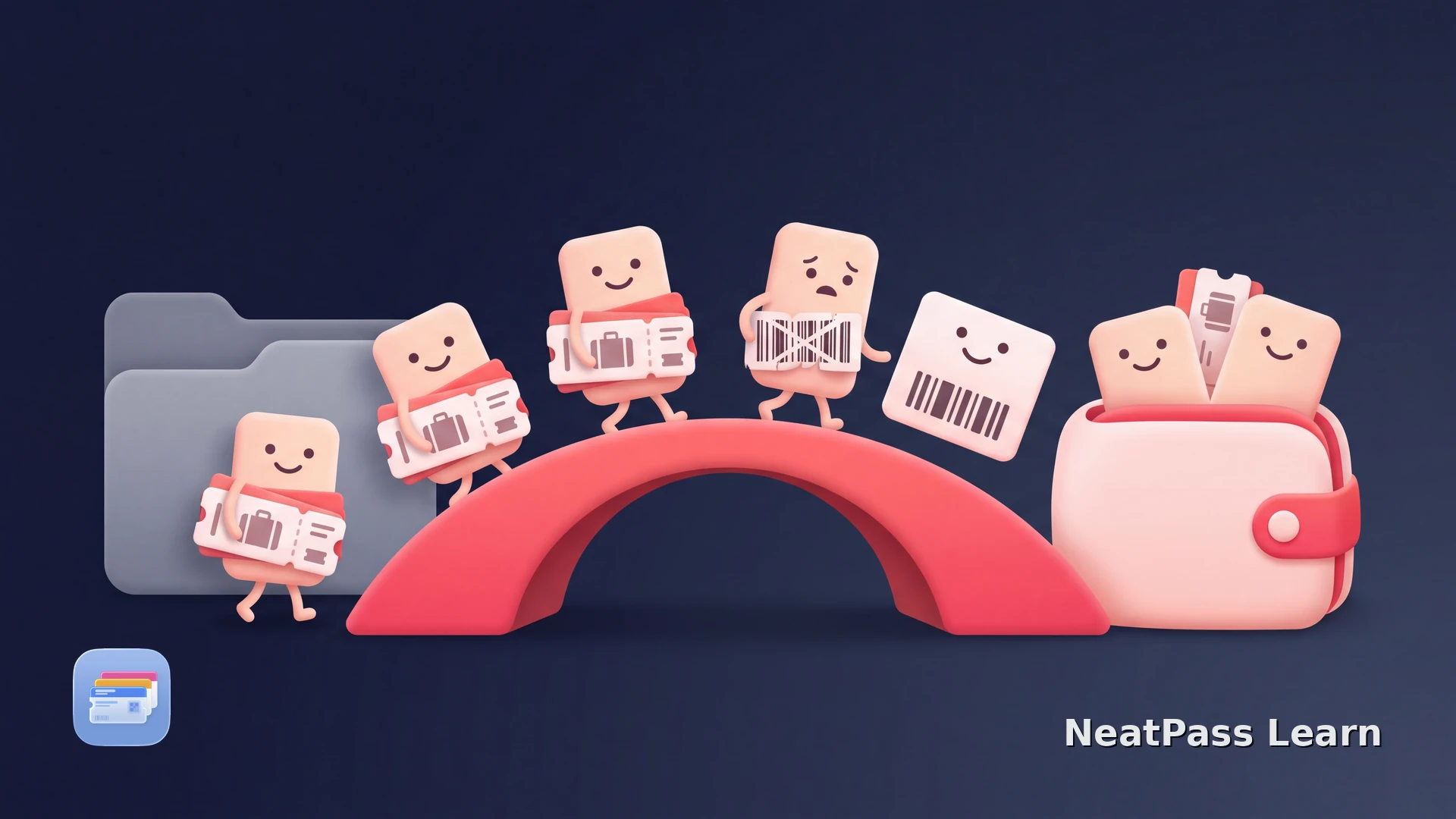
WalletPasses is an Android app for importing and viewing .pkpass files. If you are moving to iPhone and want those cards in Apple Wallet or NeatPass, first separate the passes you already have as files from cards that only exist inside the Android app.
A valid .pkpass file can go straight to Apple Wallet on iPhone. If there is no file to open, use a clear screenshot or a physical barcode as the source for a new NeatPass pass.
What WalletPasses gives you
WalletPasses is designed for Android and imports and displays .pkpass files. On iPhone, Apple Wallet opens valid .pkpass files directly.
If you still have the original .pkpass file, open it directly in Apple Wallet. If the file is unavailable, use a clear static barcode from WalletPasses or the physical card as a source for a new NeatPass pass.
A .pkpass file
Send a valid file to the iPhone and let Apple Wallet open it
A pass already in WalletPasses
Use its visible static barcode when the original file is unavailable
A physical card
Photograph the barcode as a fallback source
Open finished files directly
Where NeatPass fits
NeatPass covers the missing-file route: when a card has a barcode but no .pkpass file that Apple Wallet can open, import a screenshot, photo, PDF, or another supported source on iPhone to create a new Wallet pass.
The imported barcode is the important data. Read the current supported barcode guide for the source you have. Use the file directly when it exists; use NeatPass for a visible source that still needs a Wallet pass.
Create a Wallet pass from your barcode
NeatPass makes it easy to convert any ticket, pass, or loyalty card to Apple Wallet.
Choose the right migration route
Start with the file or card you actually have. NeatPass offers six import methods, so a screenshot or document does not need to be copied into a special format first.
Look for the original .pkpass
Open the file on iPhone
Use a screenshot when there is no file
Import the fallback into NeatPass
If the screenshot is in another app, use the NeatPass share extension to send it to the importer without saving another copy first.
When the new pass is ready, follow the add-to-Wallet guide. Do not recreate a pass that Apple Wallet already accepted from the original file.
Keep the original source
A screenshot-based pass carries the static barcode and visible details you imported. WalletPasses account access, issuer updates, live balances, and dynamic tokens remain with the original service, so keep that app or account for those features.
Use both routes when needed
NeatPass keeps the original screenshot, photo, or document with the new pass. See the view-original guide if you need to check your source later.
When several fallback passes are ready, use multi-select mode to add them to Apple Wallet as a group.
What stays with the original service
NeatPass creates a static pass from the barcode and the details visible in your source. WalletPasses balances, issuer updates, membership changes, and dynamic tokens continue in the issuer or account app, so keep that live connection when you need those features.
If your source is an image, read how to convert an image into an Apple Wallet pass. If you are moving from Android more broadly, see the Android-to-Apple-Wallet guide.
Frequently Asked Questions
Finish moving your barcode cards
DownloadUse the file when you have it
WalletPasses and Apple Wallet do not need a special bridge when the original .pkpass survives. Open that file directly on iPhone. NeatPass fills the other gap by turning a visible static barcode into a new Wallet pass when no file remains.
For the wider card workflow, read the best way to store loyalty cards on iPhone.