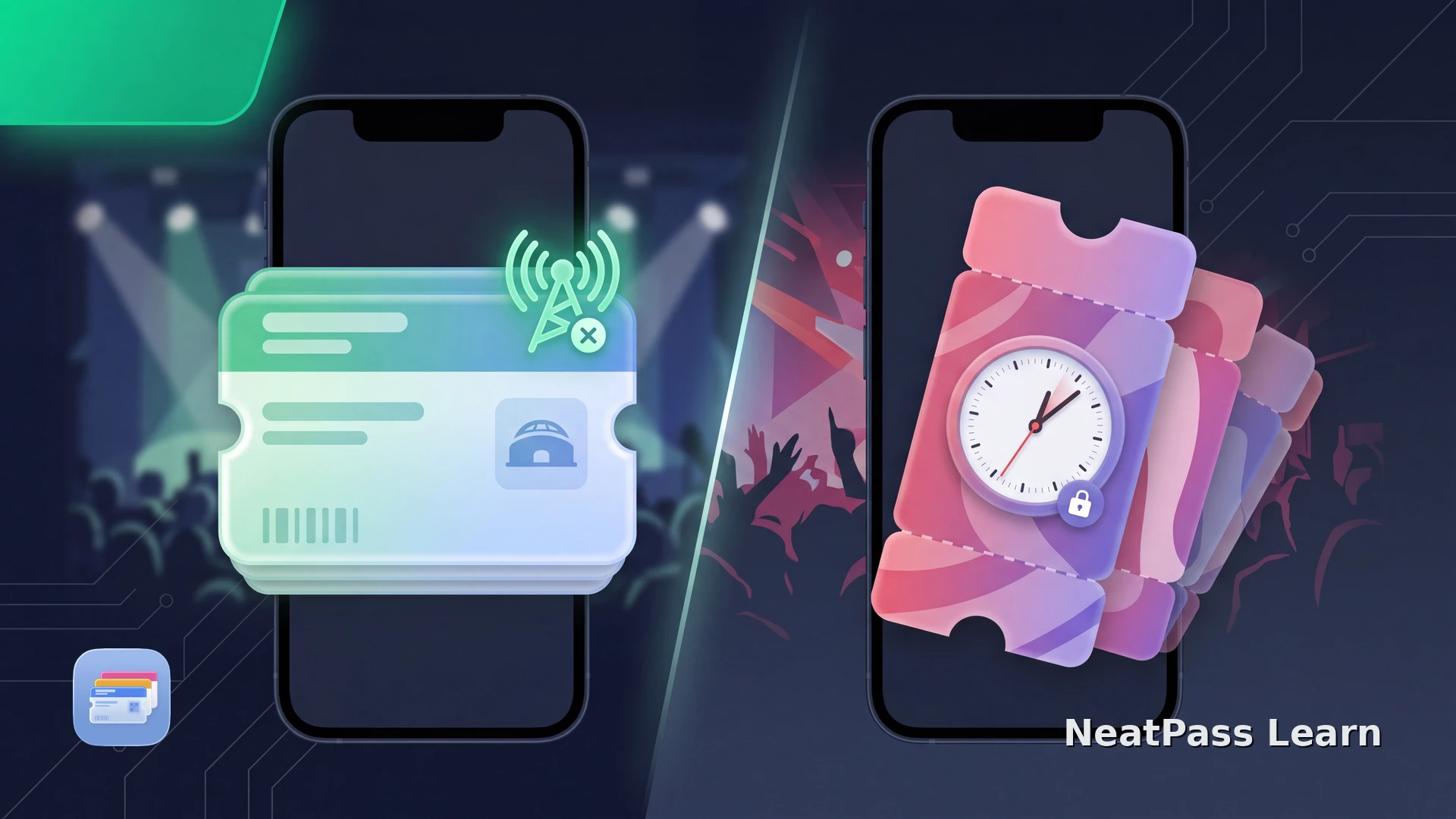
Do event tickets work offline? Sometimes. An event ticket already stored as an Apple Wallet pass can normally be displayed without a network connection, while an issuer app may need a connection for the first load, account checks, or a live barcode.
The useful question is not only whether your phone has signal. It is which kind of ticket you have, whether the issuer allows offline entry, and whether the venue can still validate it. This guide separates those cases before you leave for the event.
Four Ticket Types, Four Offline Answers
Treat the ticket credential, not the event name, as the deciding factor. These are the practical differences:
Official Apple Wallet pass
After the pass has been added online, its stored barcode and details can be shown from Wallet without loading the issuer app. Updates still need a connection.
Issuer app with offline ticket access
AXS says Mobile ID tickets display on event day without Wi-Fi after the account is prepared. The QR still rotates inside the issuer app, so it is not a static copy.
Dynamic or rotating ticket
A changing barcode is tied to the issuer's live system. Ticketmaster SafeTix refreshes its barcode, so a screenshot or copied image is not a valid offline substitute.
Static PDF, image, or barcode
A stable code can be displayed offline after it has been added to a valid Wallet pass, if the venue and issuer accept that form of entry.
Offline display is not an admission promise
Prepare an Official Wallet Ticket
Apple's iPhone guide treats a pass as something you add to Wallet before you need it. Open the ticket while you have a connection, complete the issuer's handoff, and make sure the pass is visible in Wallet before heading to the venue.
For a NeatPass pass, use the NeatPass add-to-Wallet guide for the handoff, then test the NeatPass offline-mode guide with the pass already present. A test proves that the pass can be displayed, not that every venue accepts offline entry.
The Offline Event Checklist
A short check at home is more useful than discovering a ticket rule at the gate:
Open the ticket online
Identify the barcode behavior
Test the stored credential
Keep the official fallback
Check the venue policy
For a static source that you are allowed to convert, check NeatPass's supported barcode formats before creating a pass.
Keep a static event ticket in Apple Wallet
NeatPass makes it easy to convert any ticket, pass, or loyalty card to Apple Wallet.
Where NeatPass Fits
NeatPass turns a stable ticket source such as a PDF, email attachment, or clear image into a signed Wallet pass. The source is processed on your iPhone, and adding the pass requires a brief internet connection.
Choose an option from the NeatPass import methods such as Photo Library or Camera. You can also send a saved ticket through the NeatPass Share Extension.
Static data stays the same
The Wallet pass preserves the barcode data from the stable source. If the venue's optical scanner reads it, it receives the same value; scanner hardware and entry rules still decide whether the pass works.
Sign before the event
A brief connection is needed to create the signed .pkpass file. After the pass is in Wallet, its static barcode can be displayed without waiting for the app to load.
The original remains available
NeatPass keeps the original PDF or image alongside the pass, giving you the issuer source if a venue needs more than a barcode.
Issuer changes stay with the official ticket
Use the issuer's app or Wallet handoff for ticket transfers, refunds, activation changes, rotating tokens, and event updates.
Keep the original with the NeatPass view-original guide before leaving.
Keep live tickets on their issuer route
Frequently Asked Questions
Check your ticket before you lose signal
DownloadKnow Which Offline Path You Have
Prepare an official Wallet pass or issuer app while online, test it before the event, and keep the original ticket details nearby. When the source is a stable PDF, image, or barcode that the issuer and venue allow, NeatPass can keep a copy ready in Wallet.